
How to send a PDF
for signature.
Prepare the document, choose your signers, place the fields, and review before sending. Here’s what to check along the way.
A signature request gives each recipient a place to review and sign your document. Start with the final PDF and the correct recipient details, then check every field before you send it.
About this walkthrough: These steps describe Linequill using fictional Willow Studio data. Create your account.
Before you start: a short checklist.
- The final PDF. Open it and check the page order, text, dates, and attachments. Replace an old draft before you create the request.
- Each signer’s name and email. Confirm the address with the person you intend to invite. Don’t rely on an old email thread if their details have changed.
- The signing order. Decide whether everyone can sign independently or whether one person needs to finish first.
- A clear request title. Use something you and the recipient can recognize later, such as the project name and document type.
If someone else has already invited you to sign, start with their invitation link. You don’t need to create a new signing request for the same document.
1. Start a request and upload your PDF.
In Linequill, choose Request signatures, then Upload a PDF. Select the document you’ve checked. For a one-off request, you can use a PDF you already have instead of creating a reusable template.
Confirm that the selected file is the right version before moving on to Add signers. If you need to change the wording of the document itself, update your source document and export a fresh PDF first.
2. Add the people who need to sign.
Enter each recipient’s name and email. Choose the signing order that fits the request. Linequill gives each recipient their own private link; they don’t need to create a Linequill account.
Check the signing-security options as part of this step. Depending on the request’s settings, recipients may need to complete additional verification. Let them know what to expect before sending.
3. Put each field in the right place.
In the document editor, select a signer and place the fields they need to complete. Position signature and date fields where they belong, then check the recipient assigned to each field.
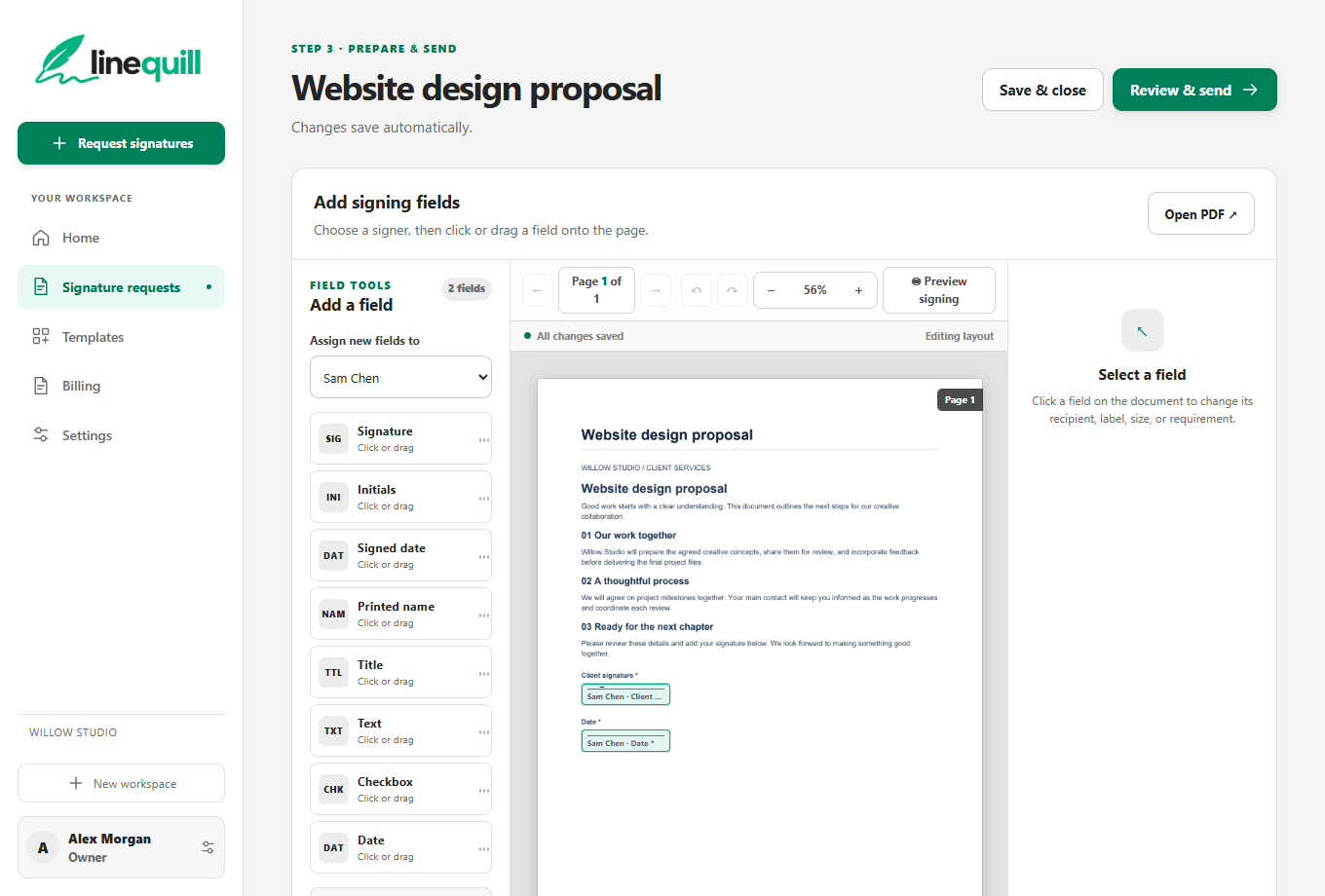
For a document with several signers, review one person’s fields at a time. Look through every page, especially the final page where a signature block can be easy to miss. Use Preview signing to check the layout without editing controls.
4. Review the request, then send.
Select Review & send. Check the document, recipient addresses, signing order, and field assignments once more. Nothing is sent until you choose Send request.
A useful final check is to ask: “If I received this invitation, would I know what I’m signing and where to complete it?” If a name, address, or document version is wrong, correct it before sending.
5. Follow the request through to completion.
After sending, return to your signature requests to check progress. A sent invitation means the request is on its way; it doesn’t mean everyone has signed. Open the request to review its status and activity.
When the signing workflow is complete, download the completed document and keep it with the relevant project or client records. Give the file a recognizable name so you can find it later.
Only sending occasionally?
You don’t have to turn occasional paperwork into a monthly routine. Read our guide to electronic signatures without a subscription to understand what to compare before you choose how to pay.
A simpler way to get it signed.
Create an account and prepare your first draft.